All Products
[
New Arrivals
Keyboards
Mice
ISO & JIS
Keycaps
Switches
Accessories
Artisan Keycaps Artisan Keycaps
]
All Keyboards
[
Q Max Series (Full Metal | Wireless)
V Max (Wireless)
K Max Series
Q Pro Series (Full Metal | Wireless)
Q HE Series (Magnetic Switch | Wireless)
B Pro Series (Ultra-Slim Wireless)
Q Series (Full Metal | Wired)
K Pro Series
K Series
V Series (Wired)
C Series & S1
Lemokey
ISO & JIS Layout Keyboards
]
Custom Keyboards
[
Q Max Series (Full Metal | Wireless)
V Max series (Wireless)
K Max Series
Q Pro Series (Full Metal | Wireless)
Q Series (Full Metal | Wired)
K Pro Series (Wireless)
V Series (Wired)
C Pro Series (Wired)
S Series (Wired)
ISO & JIS
]
Low Profile Keyboard
[
K Max Series
K Pro Series
K Series
S Series
]
Accessories
[
Keycaps
Switches
Gateron Switches
Kailh Switches
Cables
Carrying Cases
Plates
Artisan Keycaps
Acoustic Upgrade Kits
Other Accessories
]
cart
log in
register
How to check PID and VID in your Mac
Below is the tutorial showing how to check your PID and VID in your Mac.
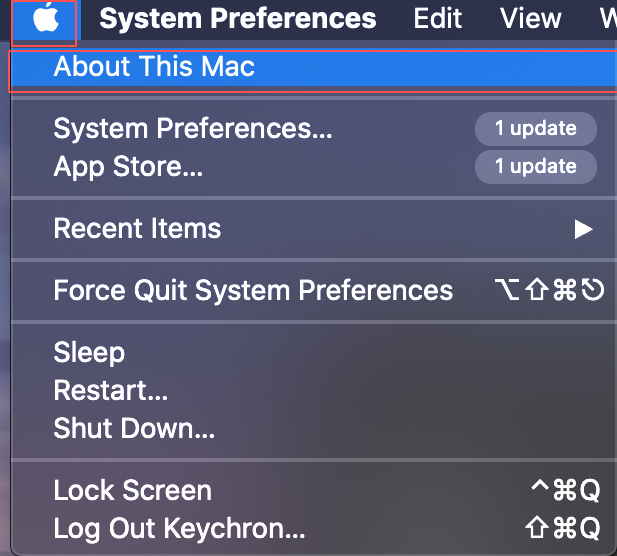
Step 1: Click the Apple icon and select "About This Mac" section.
Step 2: Click the "System Report" section.
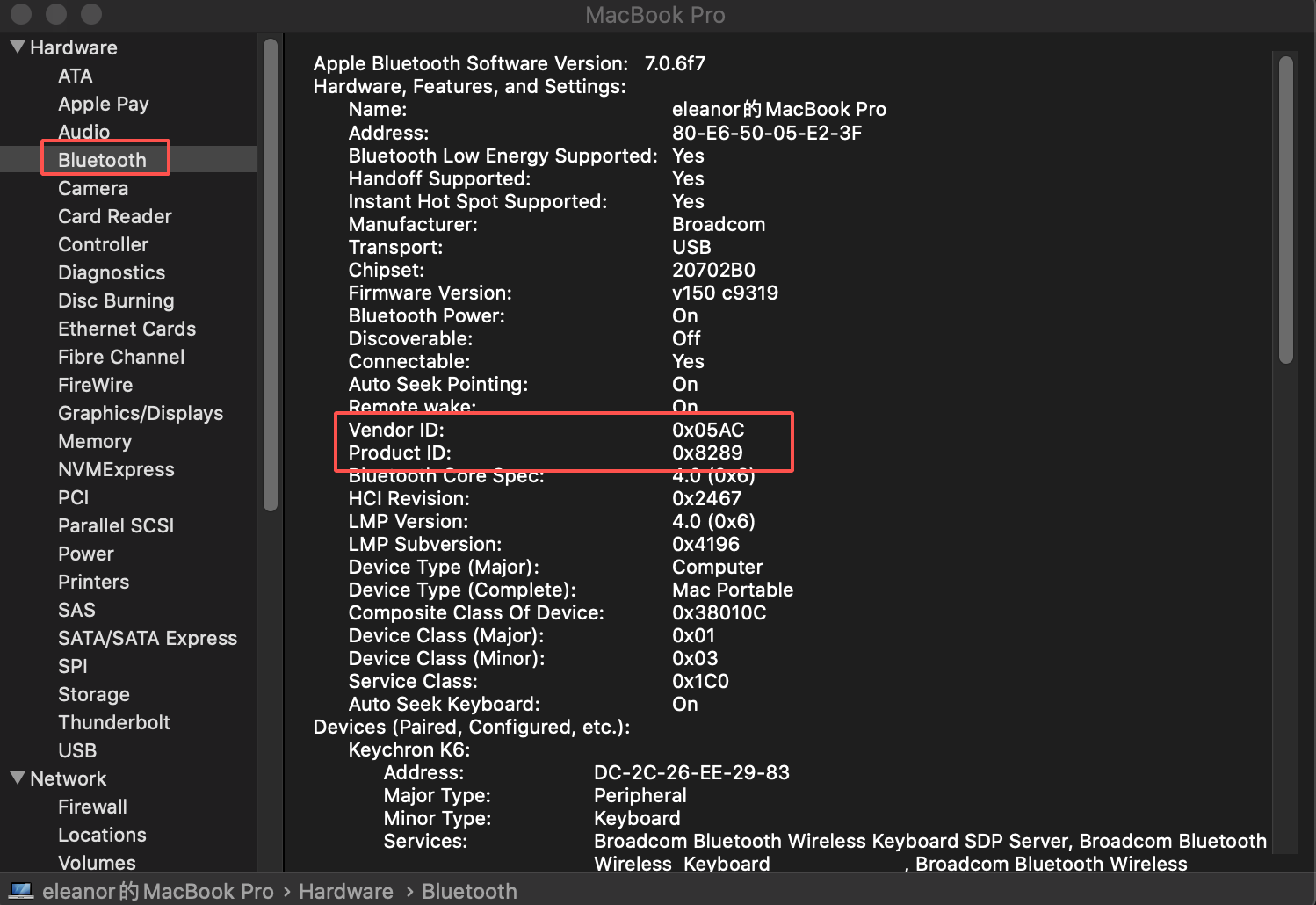
Step 3: Click the "Bluetooth" section and you will find out the Vendor ID and Product ID.
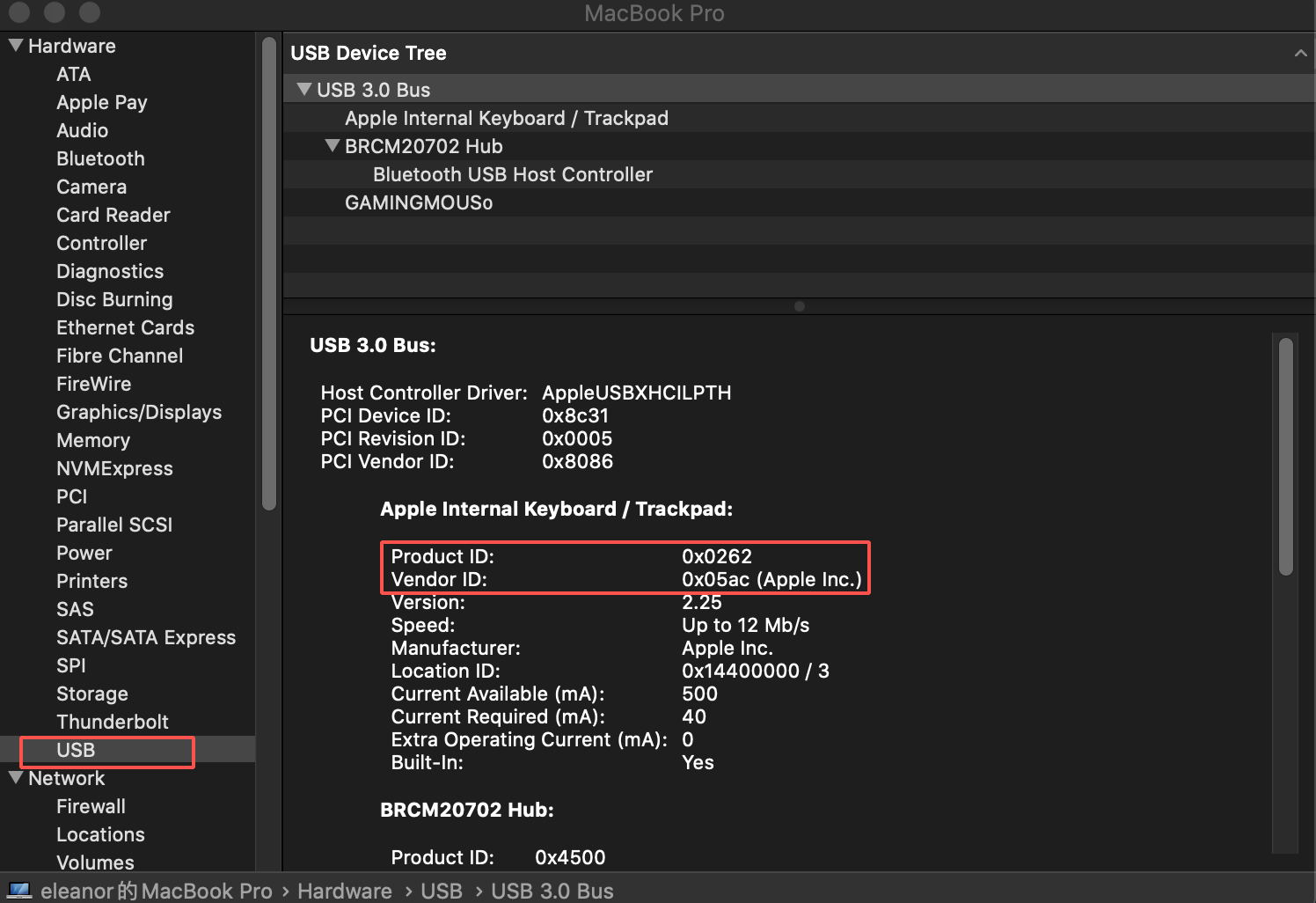
Click the "USB" section you will also find out the Vendor ID and Product ID.